The public install page
A hosted install page gives consumers the MCP endpoint, available tools, and client-specific connection instructions. Configure its visibility before sharing the link.
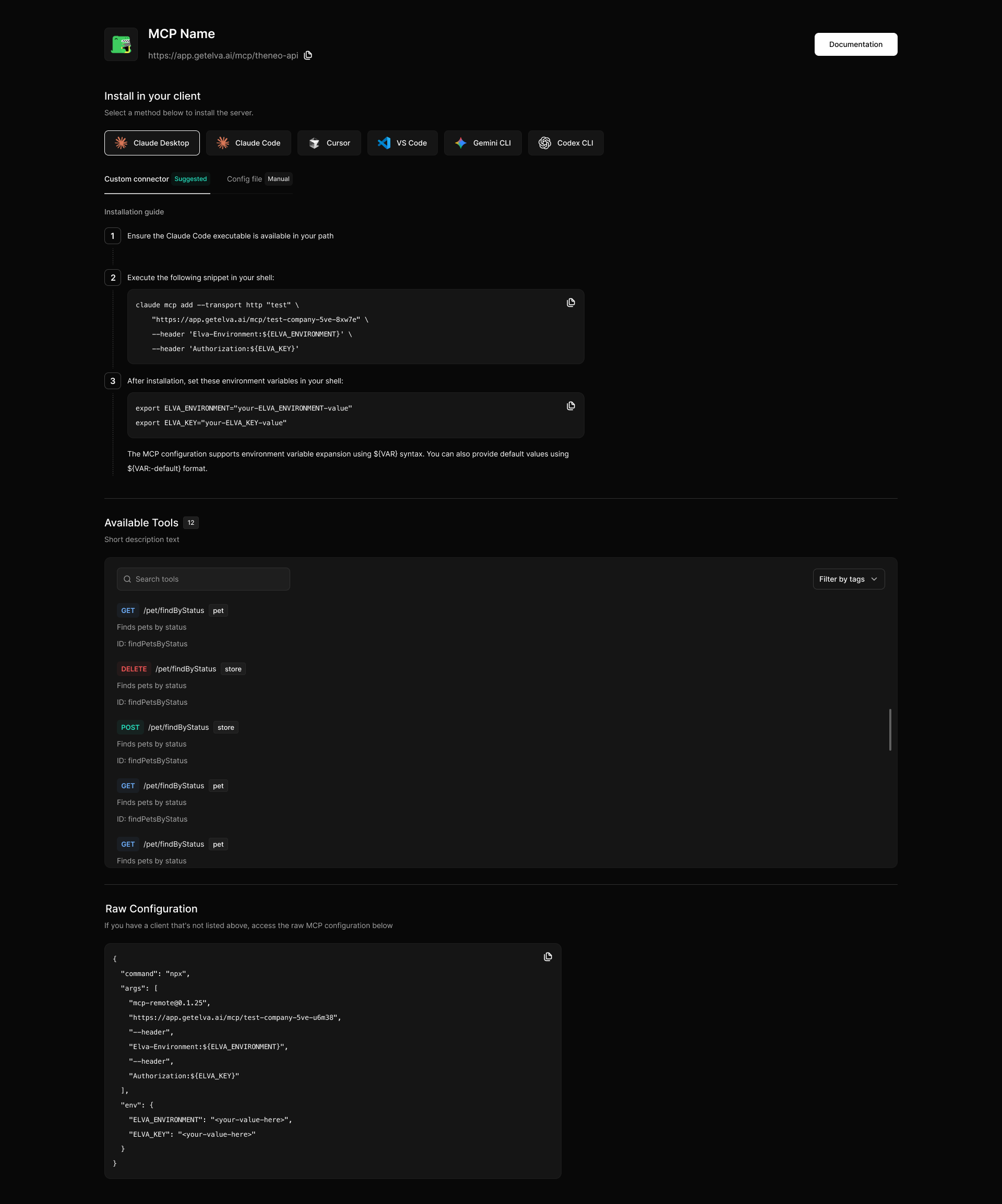
Elva renders the page from the deployment and its saved install-page settings. Check the resulting page after changing tool exposure, authentication, or branding.
Live at a predictable URL
For an enabled install page, use the address built from the workspace and MCP slugs:
https://app.getelva.ai/mcp/:companySlug/:mcpSlug/install
Prefer something you can say out loud? Set a custom slug in the MCP settings and the same page answers at a short vanity path:
https://app.getelva.ai/mcp/:customSlug/install
What a visitor sees
The page is one scroll, ordered the way a connecting developer thinks: what is this → how do I connect → what can it do.
Section | What it shows |
Brand header | Your logo, the server's name, the live MCP endpoint with one-click copy, and a documentation button styled in your primary color |
Connect your MCP client | Six client tabs — Claude Desktop, Claude Code, Cursor, VS Code, Gemini CLI, Codex CLI — each with a numbered installation guide and copy-paste commands |
Available tools | Every exposed tool with its HTTP method, path, tag, description, and tool ID — plus live search and tag filtering |
Raw configuration | The plain |
Two details do a lot of quiet work here:
- The install steps adapt to your auth. A server configured for OAuth walks the visitor through it — run the add command, then
/mcp → select the server → Authenticate, approve in the browser, done. A header-authenticated server shows the exact environment variables to export instead. Visitors never have to figure out which flow applies; the page already knows. - The tool list is full disclosure. Method, path, description, and tool ID for everything the server exposes — searchable and filterable by tag. A developer (or their security reviewer) sees precisely what an agent will be able to call before anything connects. That transparency is what makes the page shareable outside your team.
So the visitor’s whole journey is three moves:
1
Open the link
You share one URL — in your docs, a partner email, a launch post. No account needed to view a public page.
2
Pick a client, paste the setup
The visitor selects their client tab and runs the command or pastes the JSON, copy button included.
3
Authenticate and go
They complete the auth flow the page walked them through, their agent lists your tools, and the first call lands in your logs.
Make it yours
Admins customize the page from the MCP server’s Settings tab, under Install Page Branding. Four controls cover the whole surface:
Control | What it does |
MCP Logo | Upload an SVG, PNG, or JPG; it renders in the page header next to the server name |
Primary Color | Pick from the ten-swatch palette or use the eyedropper for any custom hex; it drives the page's accents, including the documentation button |
Documentation link | A link to your own MCP documentation, featured at the top of the page |
Documentation label | What that button says — "View Docs", "API Reference", whatever fits your voice |
Save your branding changes and reopen the install page to verify the logo, documentation link, and connection instructions.
Decide who sees it
Use visibility to control access to the install page and its tool listing:
Visibility | Who can open the page |
Public | Anyone with the link. |
Private | Visitors with the install-page password. |
Disabled | The install page is unavailable. |
Install-page access and API authorization are separate. A page password unlocks the onboarding page; it does not grant permission to call the upstream API. Disabling the install page does not disable the MCP endpoint or revoke existing client connections.
To stop tool access, use the MCP deployment controls or revoke the relevant upstream credentials. Review existing clients and access before treating an install-page visibility change as a security action.
Where to go next

Connect any MCP client
The exact commands and JSON the page generates for all six clients, and what the auth headers do.

MCP insights & logs
Watch who connects after you share the link: per-agent activity, call volume, and the full call log.
Contract-generated MCP servers
Review the contract's public-artifact setting as well as the MCP server's install-page visibility. Public artifacts are an explicit sharing choice. Verify the page and generated spec using the access level intended for external consumers.


On this page
- The public install page